






If you don’t know how to change AirPod name on iPhone, iPad, or Mac then this guide will help you. Here you can learn how to rename an AirPod on any Apple device by following a few simple steps. Which will present you as somewhat exceptional compared to others.
AirPod is one of Apple’s new inventions. Apple’s AirPod connects so fast that new users have nothing to do with its customization. But you can easily change the name of AirPod if you want. When a new AirPod is purchased, its name is set by default.
Which seems a bit strange to see and read. This name often causes confusion when it comes to finding the AirPod you want to connect to your iPhone, iPad, or Mac device. It is natural to be a victim of such a situation.
With this in mind, Apple is offering the option of renaming its AirPods. So that users can find the desired AirPod as soon as they open Bluetooth. However, most users do not know how to change the AirPod name. So follow the steps below to learn how to rename AirPod.
But before you know it, you need to know some important information. Which will make it easier for you to get the job done right. So before entering into the main subject matter, other information is informed.
Before Changing the Name of your AirPod
If you’re an AirPod lover like me, you may have more than one AirPods. When you start using a new AirPod, it is named by default. It looks something like this: (Your Name) AirPods.
But since you have multiple AirPods, choosing the right one is a bit difficult. With this in mind, most users want to rename AirPods. But you have to do something before you can do it.
- First, check if your AirPod has enough charge.
- Now open the AirPod case and hold down the button on the back. Doing so will turn on the AirPod’s case Bluetooth system.
- Now open Bluetooth and start searching for the device with which you want to connect AirPod.
- AirPods will automatically connect to your device after a while.
- After connecting, you can easily change the name of AirPod.
The above steps are for new users. If you are an older AirPod user then you must have already done that. So let’s learn how to change the AirPod name on iPhone, iPad, or Mac.
How to Change the AirPod Name on iPhone, iPad, or Mac?
Here are two easy ways to change the AirPod name. You can change the name using any of the methods of your choice. No matter which model of Airpod you use AirPods Max, AirPods Pro, or AirPods 1st and 2nd generation.
You will be able to successfully change your AirPod name by following the steps below. So let’s learn how to change AirPod name one by one. But first, let’s find out how to do it on iPhone and iPad.
Way No 01: How to Change the AirPods Name on iPhone or iPad?
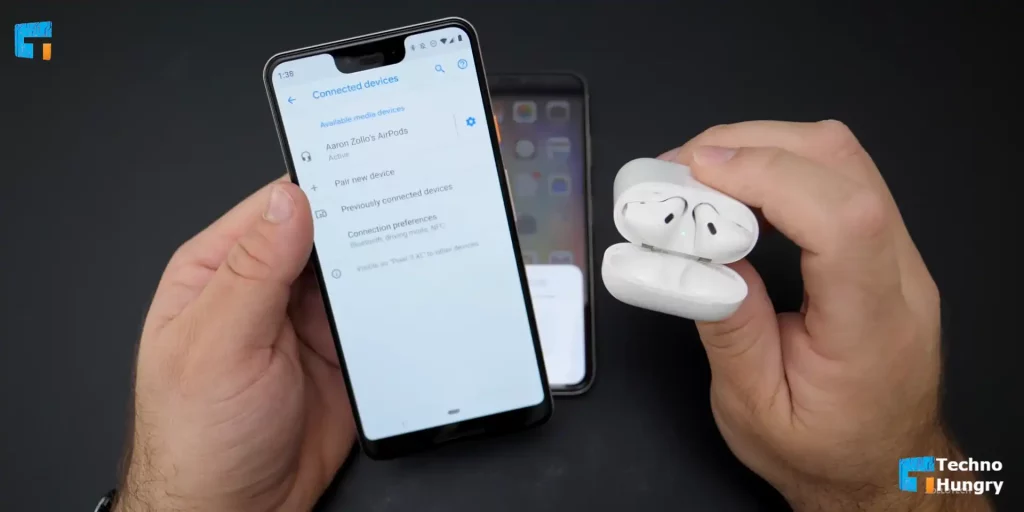
- Connect your AirPod with your first iPhone or iPad. If you connect AirPod, you will see the text connected to the right side of the name.
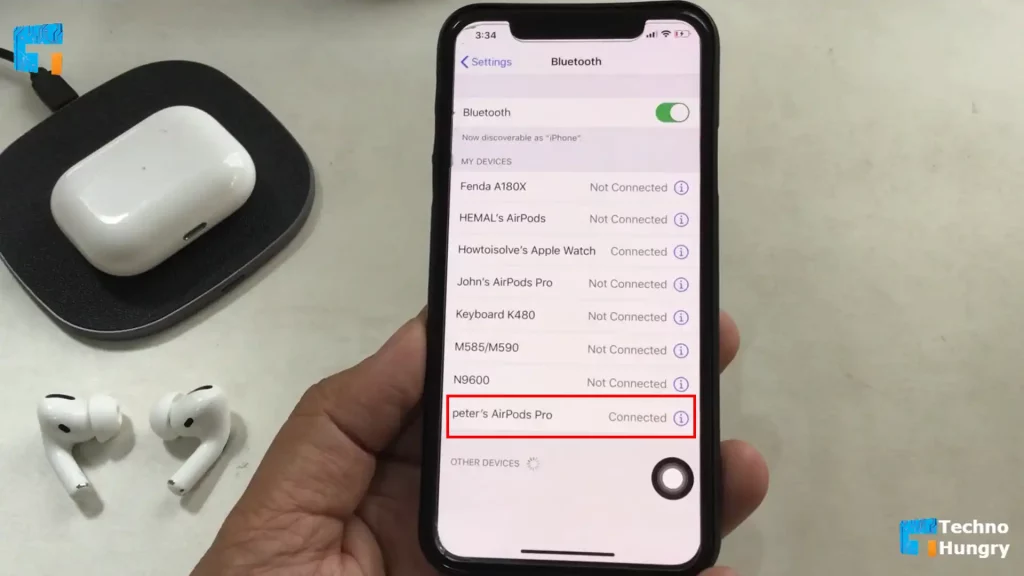
- Now open the settings menu of your iPhone or iPad. To do this, you can enter the Settings option by clicking on the Settings app or from the menu at the top.
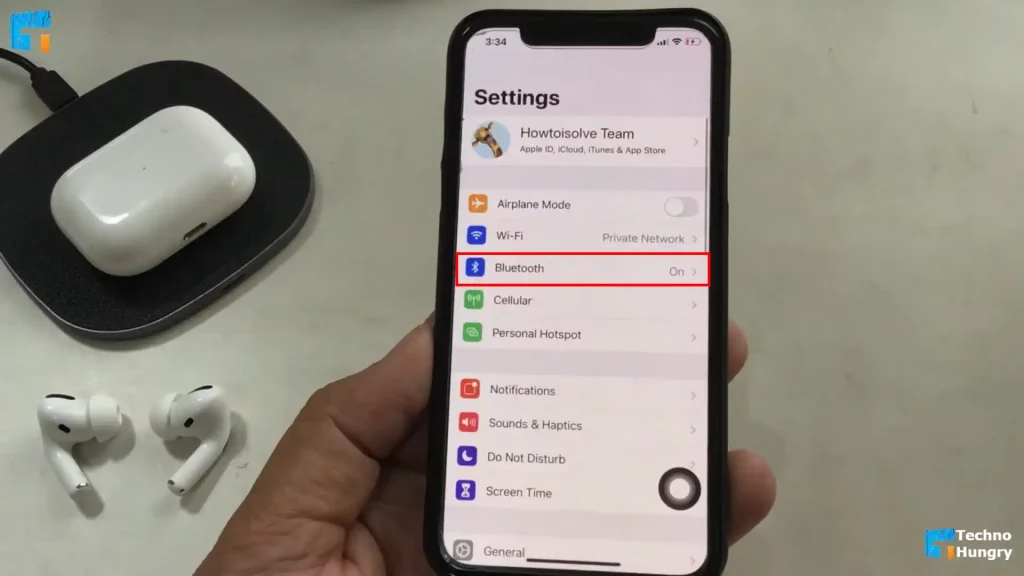
- Now find the Bluetooth option from here, gently click and open the settings menu.
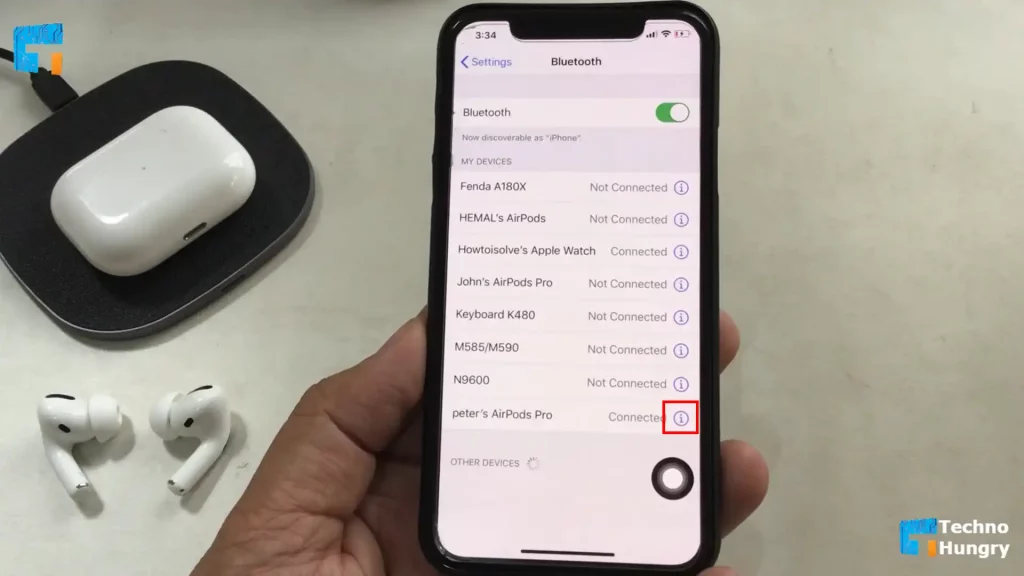
- Now you can see the devices connected to your device’s iPhone or iPad. From here, find the AirPod you are renaming and click on the (i) info icon on the right side.
- To change the name of the AirPod, delete the previous name. Click the (X) cross icon on the backspace of the keyboard or on the display to delete the previous name.
- In this box, select any name of your choice and type it. In this case, make sure that you can recognize the desired AirPod by looking at the name next time.
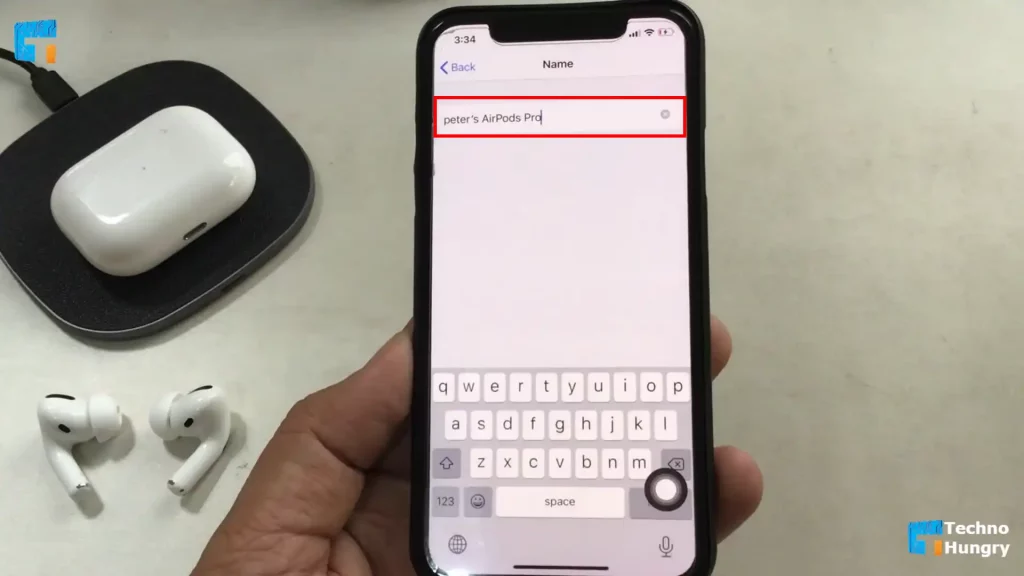
- When the new name is complete, click on the Done button on the keyboard.
- Now you will see the new name of AirPod.
If you follow these steps correctly, you have already learned about “how to change the AirPod name on iPhone or iPad”. Which will help if you change your name again later. Needless to say, you can change the name of your AirPod as many times as you like. But make sure you remember the new name.
Like Also: How to Make Galaxy Buds Louder – 5 Best Ways
Way No 02: How to Change the Name of your AirPods on Mac?

No matter which version of AirPods you use, you can easily rename it on a Mac computer device. To do this successfully you need to follow the steps below.
- First, open System Preferences from a Mac computer. To do this, click on the apple icon at the top left of the home screen. From now on, select the System Preferences option and click.
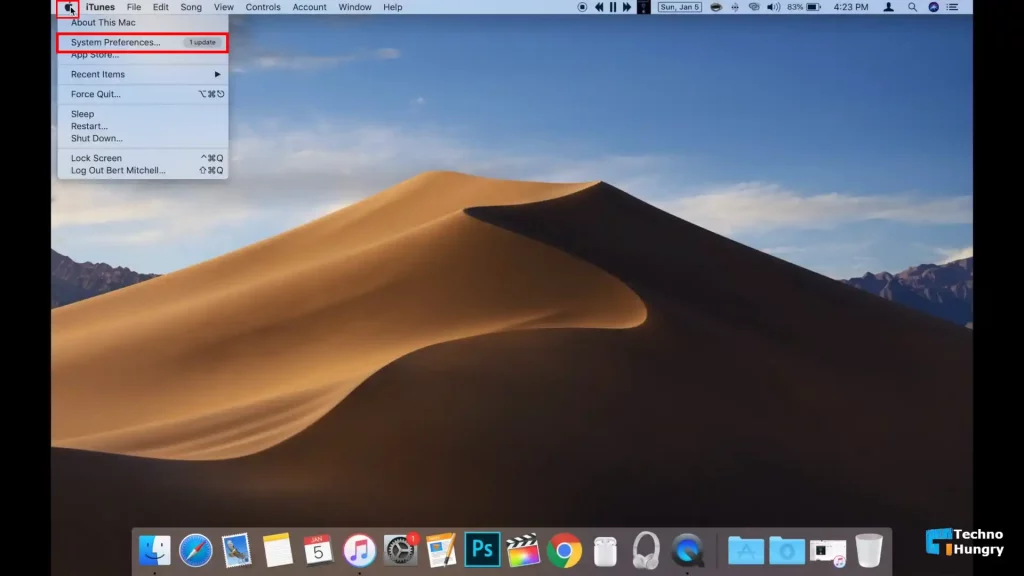
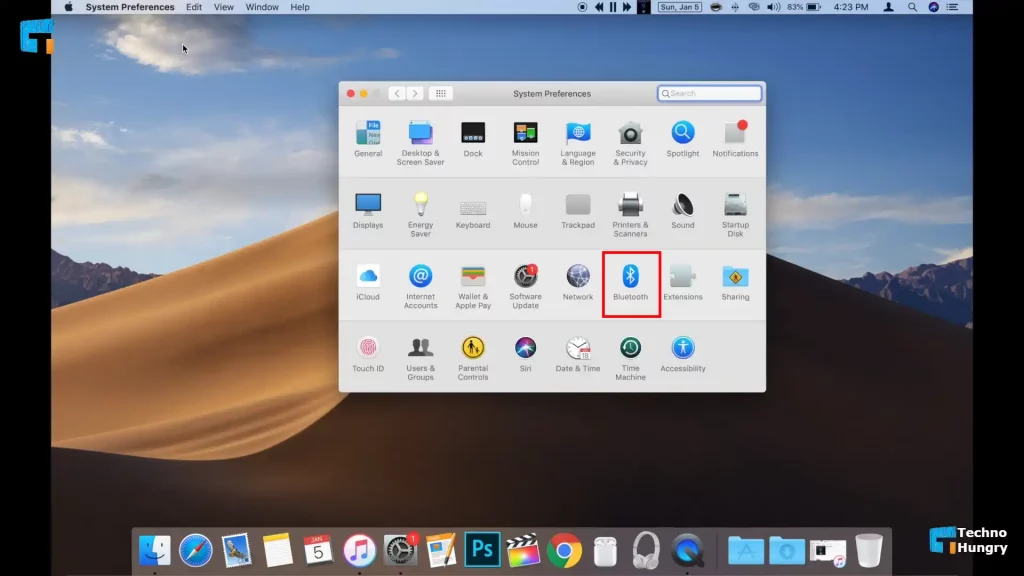
- After clicking on the System Preferences, a new window will open in front of you. From now on find the Bluetooth option and click on it. The Bluetooth option is usually located in the third row.
- Once the Bluetooth option is open, find your AirPods from here and select it, and right-click on the mouse.
- From here click on Rename option. This will bring up the rename device window.
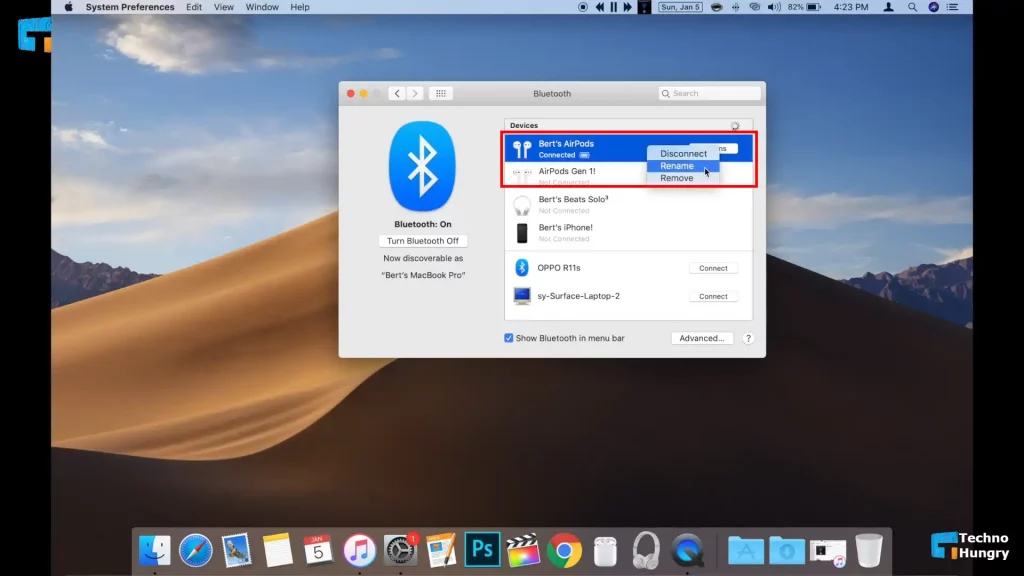
- Now delete the current name and type the name you want to give through the keyboard.
- After setting your desired name you click on the Rename option.
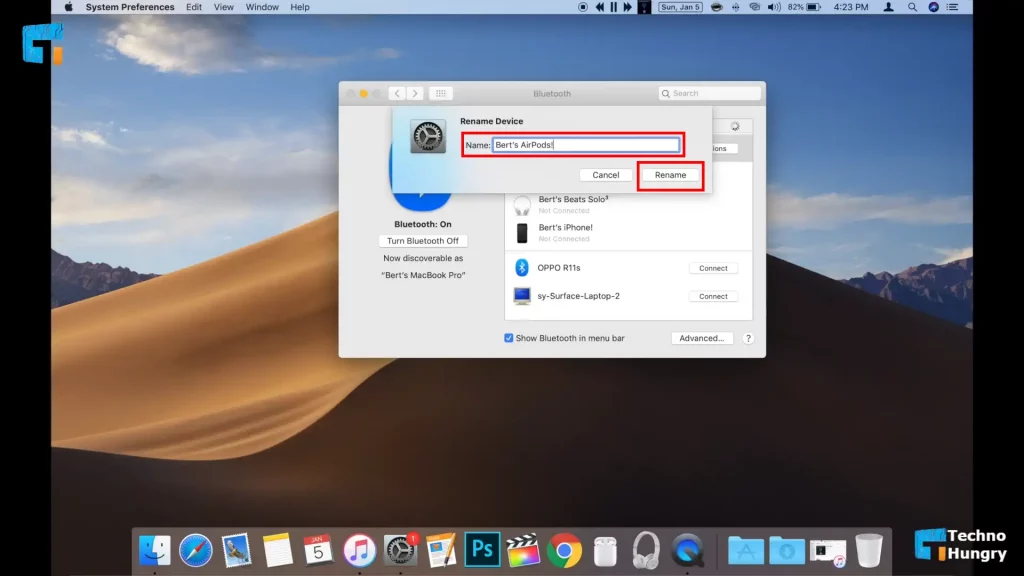
Now your air pods have been renamed and you can close the System Preferences window by clicking the red X in the upper left corner of the window.
Like More: How to Block a Number on iPhone & Android Phone?
Some Reasons for Renaming AirPods
Many times having multiple AirPods makes finding the desired AirPods a bit of a hassle. So if you put a specific name for each of them, you can easily find it. There is no need to check every AirPods.
On the other hand, if your AirPods are stolen, you can easily find them by looking at their names. Since every AirPods look the same, finding them one by one is a big problem. So you must change the name of AirPods keeping these issues in mind.
In addition, by setting a stylish name for your AirPods, you can present yourself as somewhat different from any other user. Which is a must-have, for any Affiliate, promoting any program. So you should change the name of AirPods to express yourself as a bit exceptional.
Concept of the Name AirPods
If you want to set a nice and interesting name for your AirPods then you need to think about this for a while. Because a nice name will make your AirPods feel more comfortable using it.
You can go to Nickfinder.com or Nickname Generator to select names for AirPods. On these websites, you can find or create as many names as you like.
So if you can’t find a good name for yourself, then of course you can visit any one of these 2 websites and select a good name for your AirPods.
FAQ About Changing the Name of AirPods
Can I change the name of my AirPods on an Android device?
No. If you use AirPods using Android mobile then you can’t change the name of My AirPods on Android devices. Because to do this, you just need an Apple mobile or computer.
Will resetting AirPods change the new name?
Yes. If you reset your AirPods, it will take the previous default name. However, you can set the name again by following the steps above.
How many times can I change the name of AirPods?
It has no fixed number. You can change the name as many times as you want.
Does changing the name cause any harm to AirPods?
No. This is a system that can do no harm to your AirPods. So you can easily change the name of AirPods.
Read More: How to Block or Unblock Someone on PS4 – Easy Ways
Last Words
The full poster teaches you how to change AirPod names on iPhone, iPad, or Mac. So now you can change the name as many times as you want. Each of the above methods is explained separately considering your convenience.
If you have any further questions on the subject, please share them with me in the comments below. If you find the article useful and useful, you can definitely share it with your friends.